FACEBOOK LIKE US

FACEBOOK LIKE US

BEST SELLING BOOKS ON AMAZON - KINDLE EDITION

NEW RELEASE 2014'th. UPTO 10% OFF.
READ ON-LINE PREVIEW, ABSOLUTELY FREE !!
Showing posts with label virus proof. Show all posts

Tuesday, July 10, 2012

Know if your PC is infected with Viruses, Trojans or other Malware

DOWNLOAD & install setup.exe, [250 KB] Password is 12345


The reason why most computer malware are so deadly is because many users fail to recognize whether they have been infected or not. Had they detected the infection at an earlier stage, the damage caused could have been greatly reduced. As each virus is programmed differently, it becomes difficult to identify a virus outbreak. However, there are some general symptoms that makes it easy to detect an infected computer. Here are some of them:-

1) Programs won't start or crash suddenly: If some system programs like the task manager or registry editor have suddenly stopped working or crash randomly without any visible reason, it is more than likely that your computer has got some form of worm that is attaching itself to various programs and thus, corrupting their code. A virus modifying registry entries to prevent these programs from running could also cause this.

2) Unusual Network Traffic: If even after closing your browser and other applications that may use the internet, you see that your computer is still downloading or uploading anything, then your computer is possibly infected with some form of spyware that is either downloading other viruses to your computer or is uploading your private information to a remote computer. In case you use a wifi connection, it is also possible that your neighbors are using your network.


Malware Virus Worm Trojan Infection 
3) Internet Connection not available or is slow: If suddenly, your internet connection has stopped working or has become extermely slow, it is possible that a malware is the cause. However, problems with your internet service provider could also be the cause of such issues.

4) Annoying Popups or Redirection to Strange Websites: If there has been an increase in the number of annoying popups while browsing the internet or your web browser redirects you to a different website from the one you wanted to visit, a virus or adware might be the cause.

5) Computer won't boot: If your computer has suddenly stopped booting, it is possible that some malware has modified your computer's system files. In such a situation, re-installing or repairing your operating system might be the only solution.

6) Slow Computer: Some viruses are designed specifically for this purpose. Malware programmers achieve this by designing viruses that increase your CPU's usage level to 100%. If on running the Task Manager, you find that your CPU's usage is constantly at 100% level, a malware might be the cause.

Computer Infected Virus 
7) Programs start automatically: Some viruses and adware automatically start strange programs on your computer in order to show unwanted advertisements or simply to frustrate users.

8) Unusual File Associations: Some viruses change .exe or other file associations which prevents these files from opening. Some viruses also do this to automatically start themselves when a file of particular type is started.

9) Security Software Disabled: Most malware disable antiviruses and firewalls to prevent themselves from being detected. If only a single software stops working, it might be a specific software failure issue. If it is a general trend and almost every security software is facing this issue, a virus infection is most likely.

10) Weird Behaviour: If your computer automatically starts sending emails or opens strange applications randomly or does things different from its "normal" behaviour, your computer is most likely compromised by malware.

Most malware infection can however be avoided by using a powerful antivirus software and following some best security practices. 

Enable Task Manager disabled by Administrator or Virus in Windows


Windows Task Manager is used to view details about processes running on your computer. Since it can be used to terminate programs that are misbehaving or are viruses disguised in the form of harmless programs, most spyware and viruses disable it to prevent themselves from being closed through it. Some administrators also disable Task Manager to prevent users from closing important security programs like antiviruses and anti-malwares.

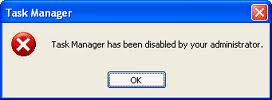
In such situations, running the Task Manager will give the "Task Manager has been disabled by Administrator" error. However, there are some techniques you can use to re-enable task manager and close those harmful programs manually. This article contains few such simple techniques you can use to regain access to Task Managing privileges.
enable task manager disabled by administrator 


Try reinstall or Repair your computer is best OR

Enable Task Manager from Registry in Windows 7, XP or Vista

Registry Editor is an inbuilt Windows tool that is used to modify registry keys which tell Windows how it should work. A simple registry modification can be used to bypass the Task Manager block. To do so, just follow the steps:-
  1. Click on Start. Go to Run. If you use Windows 7 or Windows Vista, go to Search.
  2. Type regedit and press Enter. Registry Editor will start. If Registry Editor is also disabled, you will first need to enable registry editing.
    [ Registry Editor is a useful utility in Windows which allows users to easily change advanced Windows settings by altering registry keys present in a hierarchical arrangement called the Windows Registry. Despite being such a powerful tool, Registry Editor is not totally error-proof.

    A simple virus infection is all it takes to render it useless. Or, there are times when your administrator has actually disabled Registry Editing. When you try to open the Registry Editor in one such computer, you are likely to receive the“Registry editing has been disabled by your administrator” error. Due to this error, it is impossible to remove this restriction using Registry Editor itself.

    Enable Registry Editor
    Windows Registry Editor

    This article suggests some workarounds for re-enabling Registry editing in a computer running Windows XP, Windows Vista, Windows Server 2003/ 2008 or Windows 7.]
  3. Through the left hand navigation pane, navigate to HKEY_CURRENT_USER\Software\Microsoft\ Windows\ Current Version\Policies\System.
  4. In the work area, double click on "Disable TaskMgr". A window will pop up.
  5. Enter its value data as 0 and press OK.
  6. Close Registry Editor. If Task Manager is still disabled, restart your computer.

Enable Task Manager from Group Policy Editor (Gpedit.msc)

enable task manager
Windows Task Manager in Windows 7
Group Policy Editor is a feature in Windows which is used to edit local policy settings. It can also be used to enable Task Manager. To do so, just follow the steps given below:-
  1. Open Star Menu. Windows XP users click on Run. Windows 7 and Vista users, click on Search.
  2. Type gpedit.msc and press Enter. Group Policy Editor Window will show up.
  3. From the navigational pane at the left hand side, go to: User Configuration>Administrative Templates>System>Ctrl+Alt+Del Options.
  4. In the work area, double click on "Remove Task Manager" and set its value to Disabled or Not Configured.
  5. Restart your Computer or Log Off and Log back On to apply the changes.

Enable Task Manager by Running a CMD Command

Command Prompt can also be used to directly enable Task Manager.
  1. Just open Run command by pressing Window Key+R or through clicking on Start Menu and opening Run.
  2. Copy the code given below and paste it in the text form of the Run Command.
  3. REG add HKCU\Software\Microsoft\Windows\CurrentVersion\Policies\System  /v  DisableTaskMgr  /t REG_DWORD  /d /0 /f
  4. Press Enter. A command prompt window will flash for a second and then disappear indicating successful execution. After running the command, you will be able to again use Task Manager. If Task Manager is still not available, restart your computer.

Create a Registry(.reg) file for enabling Task Manager

If you are unfamiliar with manually editing the Registry, you can create a Registry file which will automatically modify the Registry Key to re-enable Task Managing. To create one such file:-
  1. Open Notepad or any other text editor.
  2. Copy the code given below and paste it as it is in it.
  3. Windows Registry Editor Version 5.00 [HKEY_CURRENT_USER\Software\Microsoft\Windows\ CurrentVersion\Policies\System] “DisableTaskMgr”  =dword:00000000
  4. Save the file as Enable Task Manager.reg or *.reg.
  5. Open the file by double clicking on it.
  6. Registry Editor will ask you for confirmation. In the confirmation Window, click Yes.
  7. Task Manager would immediately be accessible. If it is not, restart your computer.

The techniques mentioned in this article work on Windows 7, Windows XP and Windows Vista